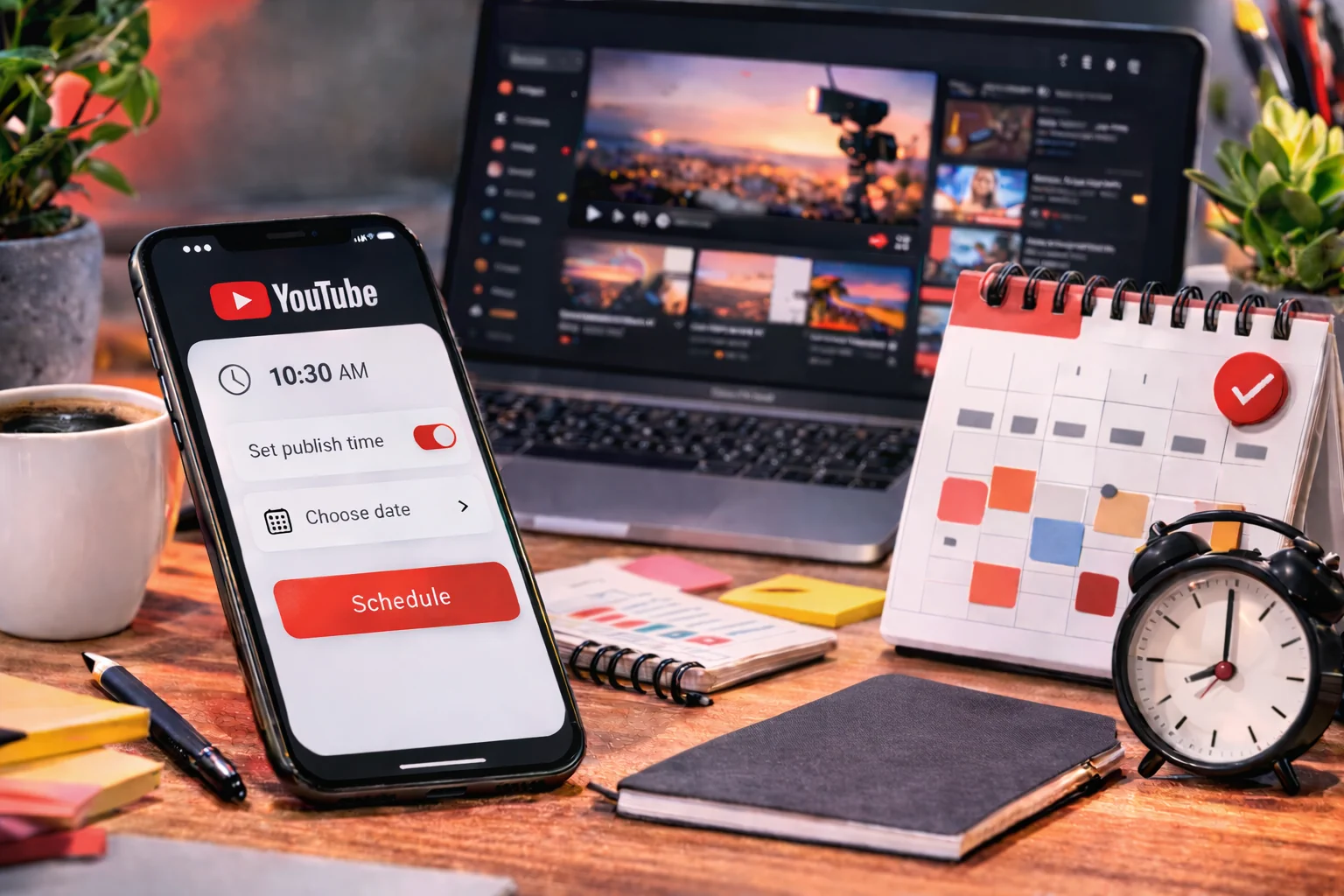
A creator who wants viewers to find the broadcast early needs more than the live button. Planning the date, title, visibility, audience setting, and reminder window can make the difference between a live stream that feels prepared and one that appears suddenly with no clear schedule. That is why learning how to schedule a live stream on YouTube mobile is useful for creators who stream from a phone.
This topic fits the Schedules category because it is not only about going live. It is about making the live event discoverable before it starts. A scheduled stream gives viewers time to notice the event, save the date, and return when the creator is ready.
YouTube Help says creators can create or schedule mobile live streams from the YouTube app by tapping Create, choosing Live, using Edit to enter stream details, and selecting “Schedule for later” when setting up the broadcast. YouTube also lists mobile live requirements such as at least 50 subscribers, channel verification, no live streaming restrictions in the last 90 days, live streaming turned on, and a supported Android or iOS device.
Mobile Scheduling Belongs In The Planning Stage
A scheduled YouTube Live is useful when the stream has a clear purpose. It works well for tutorials, product demos, online classes, gaming sessions, creator announcements, music practice, interviews, and community chats.
Scheduling from mobile is especially practical for creators who use their phone as the main camera. A phone can be easier for vertical live sessions, desk filming, cooking content, outdoor streams, travel updates, or casual creator sessions where a laptop setup feels unnecessary.
The mistake many creators make is treating scheduling as a small technical step. It is actually part of the audience experience. If the title is unclear, the privacy setting is wrong, or the time is confusing, viewers may miss the stream before the content even begins.
Before You Schedule Anything On The YouTube App
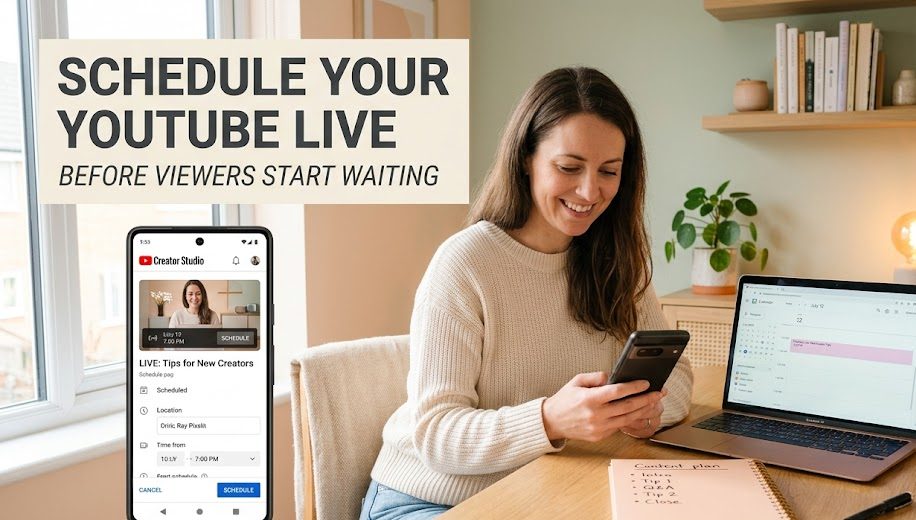
Do not start with the title first. Start by checking whether the channel can actually use mobile live streaming. This avoids the frustrating situation where the creator prepares a topic but cannot schedule or start the live from the phone.
Channel Requirements Decide Whether Mobile Live Is Available
YouTube’s mobile live requirements include at least 50 subscribers, no live streaming restrictions in the last 90 days, channel verification, live streaming enabled, and a supported device. YouTube also notes that the first mobile live stream may take up to 24 hours before it is available after turning on live streaming.
This means new creators should not prepare the stream five minutes before the planned time. Enable live streaming early, verify the channel, and check whether the Live option appears in the YouTube app.
The Right Account Must Be Open On The Phone
Many creators manage more than one YouTube channel. Before scheduling, check that the YouTube app is signed into the correct account and channel.
This matters because a scheduled stream is tied to the channel where it was created. If the creator accidentally schedules it on a personal channel instead of a brand channel, the audience may never find it in the expected place.
A quick account check can prevent a messy last-minute cancellation.
The Stream Idea Should Already Be Clear
Before opening the app, prepare the basic plan:
- stream title
- date and time
- topic or purpose
- public, unlisted, or private visibility
- audience setting
- thumbnail idea if needed
- short description
- whether the stream is vertical, horizontal, or screen-based
This makes the mobile setup faster. Typing everything from scratch on a phone while nervous can lead to mistakes.
The Mobile Scheduling Flow Inside YouTube
The basic flow is simple, but each setting matters. The creator should move slowly through the setup instead of tapping through the screens too quickly.
Open The YouTube App And Enter Live Setup
On a phone or tablet, open the YouTube app. Tap Create, then choose Live. YouTube’s mobile live guide places the live setup inside the Create flow, then uses the Edit option to enter stream details.
Creators who do not see the Live option should check whether the channel meets the mobile live requirements, whether the app is updated, and whether they are using the correct channel.
Use Edit To Set The Important Details
The Edit section is where the stream becomes more than a blank live room. This is where creators should add the title, visibility, audience setting, schedule, and other stream options.
YouTube Help notes that creators can change visibility and audience settings and choose “Schedule for later” to pick a date for the live stream. For users aged 13 through 17, YouTube says the default mobile live privacy setting is unlisted, while users 18 or older default to public, though privacy can be changed.
For most creators, these details should be checked carefully:
| Setting | Why It Matters |
|---|---|
| Title | Helps viewers understand the live topic before joining |
| Visibility | Controls whether the stream is public, unlisted, or private |
| Schedule time | Tells viewers when to return |
| Audience setting | Affects feature availability and compliance |
| Description | Gives context, links, or session notes |
| Live chat options | Shapes how viewers interact |
| Orientation | Affects how the live appears on mobile screens |
This table can be used as a pre-publish check before saving the schedule.
Choose Schedule For Later And Pick The Time
The scheduling step is the main action. Select Schedule for later, then choose the planned date and time.
Make sure the time zone makes sense for the target audience. A creator may schedule correctly for their own location but confuse viewers in another region. For community streams, mention the time clearly in the title, description, or announcement post.
A good scheduled title might look like:
“Live Q&A For Beginner Creators This Friday”
A weak title might look like:
“Live later”
The first title gives viewers a reason to care. The second only says something is happening.
Starting The Scheduled Stream Later
Scheduling and starting are not the same step. After the stream is scheduled, the creator still needs to return to it when the time comes.
YouTube Help says that to start a scheduled mobile live stream, creators should open the YouTube app, tap Create, choose Live, tap Calendar, select the scheduled stream, and then tap Go live when ready.
This is important because creators should not create a new live by accident. They should select the scheduled one from the calendar so viewers waiting on the scheduled page are connected to the correct event.
Common Scheduling Problems On YouTube Mobile
Some problems happen because the creator misses a requirement. Others happen because the scheduled stream is created correctly but started incorrectly later.
The Live Button Does Not Appear
This may happen when the channel does not meet mobile live requirements, live streaming has not been enabled yet, the first live waiting period is still active, or the app is not updated. YouTube’s mobile live guide says creators may need to wait up to 24 hours before starting their first mobile live after enabling live streaming.
The practical fix is to check eligibility early instead of on the event day.
The Scheduled Stream Is Missing
If the scheduled stream does not appear, check the YouTube account and channel first. The stream may have been scheduled under another channel. Then return to the mobile flow: Create, Live, Calendar, and select the stream.
Avoid creating a second live unless the first scheduled stream is truly wrong. A duplicate stream can confuse viewers.
The Privacy Setting Is Wrong
A stream set to private or unlisted may not appear publicly the way the creator expects. This is useful for testing, but risky for public events.
Before announcing the stream, check the visibility setting. Public streams are easier for general viewers to discover. Unlisted streams work better for private communities or invitation-only sessions. Private streams are mainly for limited access.
Q&A
Why Can’t I Schedule A YouTube Live From My Phone?
The channel may not meet mobile live requirements, live streaming may not be enabled, the first-live waiting period may still be active, or the YouTube app may be signed into the wrong channel. Start by checking eligibility and account selection.
Can I Schedule The Stream First And Go Live Later?
Yes. YouTube’s mobile live guide explains that scheduled mobile live streams can be started later from the YouTube app through Create, Live, Calendar, select the live stream, then Go live.
Should The Stream Be Public Or Unlisted?
Use public visibility when the stream is meant for general discovery. Use unlisted when only people with the link should join. Use private for testing or very limited access. The right choice depends on whether the creator wants discovery or controlled access.
What Happens After The Mobile Live Ends?
YouTube says that after ending a stream, a recap appears with stream stats, and an archive is created on the channel. The creator can edit the archive’s privacy settings or delete it later.
Can Live Chat Or Q&A Be Managed From Mobile?
YouTube’s live streaming help explains that creators can start a Live Q&A from the mobile app during a stream by tapping Create, Live, starting the stream, then using the Add option in the chat window to start Q&A. Questions can appear in a Questions List, and selected questions can be pinned to the top of chat.

Bùi Quang Huy spent six years working in content operations for a regional video platform, where he organized channel directories, improved content tags, and monitored recommendation quality. He understands how search terms, categories, hashtags, alerts, and viewing history affect what users find online. His guides help readers discover relevant livestreams without endlessly scrolling through crowded platform homepages.



1 comment
Comments are closed.